Setup guide
How to Set Up Auto Dialer on an Android Phone in Six Steps
This guide shows how to set up auto dialer calling with The Auto Dialer: from installing the app to the first logged call, with no telephony account and no computer.
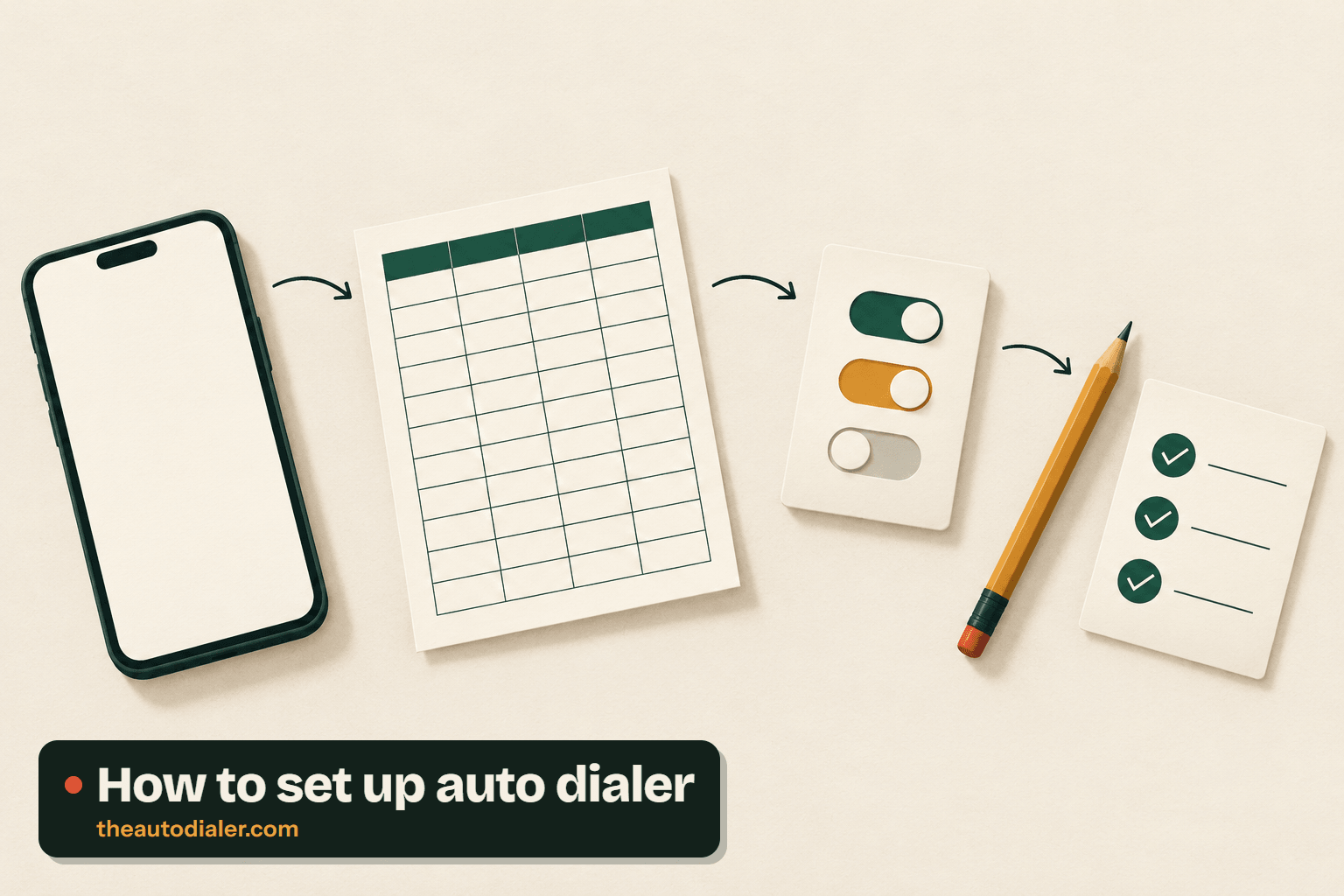
Steps for how to set up auto dialer
-
Install the app and finish guided setup
Install The Auto Dialer and sign in. The guided setup asks for three things: the default dialer role, notification permission and alarm permission. The dialer role lets the app place and show calls; the other two make follow-up reminders ring on time.
Where: Caller’s phone
-
Choose the SIM for business calls
On a dual SIM phone, set the default SIM for business calls, or leave it to be picked per call. You can also choose which SIMs are backed up to the account.
Where: App settings
-
Import your lead list
Bring in an Excel, CSV or JSON file, or share a file into the app from WhatsApp, mail or the browser. Map the columns to lead fields. Duplicate numbers are dropped, country codes are handled, and skipped rows are shown with the reason.
Where: Import screen
-
Set the calling rules
Pick the gap between calls, the ring limit for unanswered calls, the minimum call length that marks a lead done, and whether unanswered numbers are redialled 1 to 3 times.
Where: Auto dialer settings
-
Start the calling session
Open the imported list, a filtered set of leads, your assigned queue or today’s due follow-ups and start auto dialing. The session shows progress, and you can skip, pause or stop from any screen.
Where: The list or a lead filter
-
Log each call from the after-call sheet
When a call ends, set the lead status, add a remark by typing or voice, and choose a follow-up time. The next call starts after the gap.
Where: After every call
Checklist: how to set up auto dialer at a glance
| Step | Where | You decide |
|---|---|---|
| 1. Install and guided setup | Caller's phone | Allow dialer role, notifications, alarms |
| 2. Business SIM | App settings | Default SIM, or ask per call |
| 3. Import list | Import screen | File type and column mapping |
| 4. Calling rules | Auto dialer settings | Gap, ring limit, minimum call length, retries |
| 5. Start session | List or lead filter | Which leads to call today |
| 6. Log calls | After-call sheet | Status, remark, follow-up |
Team owners: how to set up auto dialer for a team
For a team, the owner does three more things before the callers begin:
- Assign leads. Give each team member a queue so two people never call the same lead.
- Lock the gap. Fix the pause between calls for everyone, so the pace is the same across the team.
- Connect a lead source. Link a Google Sheet or REST API so new enquiries arrive on a schedule.
The owner's tools are described under auto dialer software for small teams, and the wider case for an auto dialer for business is made separately.
Pace planning: how to set up auto dialer call gaps
The gap between calls sets the pace of a day of auto dialing, and the arithmetic is simple. One call cycle is ring or talk time, plus logging, plus the gap. As an illustration: if a cycle averages 60 seconds on the line, 10 seconds to log and a 10 second gap, that is 80 seconds per number, or 45 numbers in an hour of steady calling. Shorten the ring limit and the cycle gets faster; add longer conversations and it slows. Start with a gap long enough to finish the remark, then reduce it.
Guides on how to set up auto dialer for specific tasks
Narrower tasks, each with its own steps:
-
How to auto dial on Android
Step by step, from a list to automatic calls on any Android phone.
-
How to auto dial on iPhone
What iOS allows an app to do when dialing a list, and the steps.
-
How to call a list of numbers
From a messy spreadsheet to a clean calling list and a finished session.
-
How to change default dialer on Android
Default phone app settings explained, and how to switch back.
-
Auto dialer not working
Fixes for calls that do not start, stop mid-list or skip numbers.
Phone makers add their own battery and background limits, which decide whether calls and reminders run on time. The dialer app for Android page links a setup note for each major brand.
Fixes for problems in how to set up auto dialer
- Calls do not start. The app is not the default phone app. Reopen the guided setup and grant the dialer role.
- Reminders do not ring. Notification or alarm permission was refused, or the phone's battery saver is stopping the app in the background.
- Rows are missing after import. Open the skipped rows view; each one states why it was left out.
- The wrong SIM dials. Set the default business SIM in settings.
Retry behaviour has its own page, auto redial. What you see during a call is covered under auto dialer app for Android, every option is in the feature list, and why the SIM matters is explained under SIM based auto dialer, with other methods compared under types of dialers. Before the first session, read who you may call in your country.
FAQ on how to set up auto dialer
11 questions, answered
How to activate auto dial?
Auto dial is activated inside a dialer app: once the app holds the default phone role, open a set of numbers and press start. In The Auto Dialer, auto dial is activated from an imported list, a lead filter, your assigned queue or today’s follow-ups.
Can I set my phone to automatically call someone?
Yes, with an app. Android and iPhone do not dial lists on their own. An auto dialer app places the calls for you, either through a list or by redialing one number a set number of times.
How to set default call dialer?
On most Android phones the choice sits under Settings, Apps, Default apps and Phone app, though brands rename these menus. Pick the app you want there. The Auto Dialer’s guided setup takes you straight to that choice, so you rarely need to hunt for it.
How long does it take to set up The Auto Dialer for a team?
Onboarding usually takes one working day. The team at The Auto Dialer creates the account, imports the first lead file and adds your callers with you on a call.
What is the easiest auto dialer to set up without IT help?
A phone-based one. The Auto Dialer needs no server, telephony account or desktop install: each caller installs the app, and setting up auto dialer rules takes a few taps in settings.
What file format should my list be in?
Excel, CSV or JSON files all work, and so does a connected Google Sheet. Only the mobile number is required; a lead can be saved with just that.
How to set up auto dial on iPhone?
iPhone has no built-in list dialing, so install The Auto Dialer’s iPhone app, sign in and import or select a list; the gap and redial rules are set as on Android. Two steps differ: iOS does not let the app become the default phone app, and the app cannot read the iPhone call log.
How do I make an auto dialer?
Building one from scratch means writing an app with permission to place calls, a list importer, retry logic and somewhere to store results, which is a sizeable software project. For most businesses it is quicker to configure an existing app: install, import a list, choose the rules and start a session.
What gap between calls should I choose?
Choose a gap long enough to finish your remark and glance at the next lead, then shorten it once the routine feels easy. For instance, begin at 15 seconds and drop to 10 after a few sessions. If the owner has locked the gap for the team, the admin’s value applies to everyone.
Can I set up the auto dialer on several phones at once?
Each caller installs the app and signs in to the shared business account; the owner then assigns leads and every phone receives its own queue. An admin can fix the call gap for every handset at once, and a connected Google Sheet can feed new enquiries to the team without anyone importing files by hand.
Why is my auto dialer not calling the next number?
Usually one of four things: the app lost the default phone role, the session was paused, the phone’s battery saver stopped it in the background, or no numbers in the list still match the filter. Check them in that order; brand-specific battery settings are covered in the troubleshooting guide.
Prefer to set it up with someone on the line?
We create the account and import your first list with you, usually within a working day.